

How to Track AI Traffic from AI Overviews (and ChatGPT) in GA4
AI traffic is already impacting your organic numbers.
But here’s the problem:
Most businesses can’t see it.
AI Overview clicks show up as “organic” or “direct”.
ChatGPT often shows up as “referral.”
And unless you’ve configured GA4 properly… you have no idea what’s actually driving performance.
In this guide, you’ll learn:
- How to track AI traffic in GA4
- How to isolate AI Overview visits
- How to track ChatGPT and other AI tools
- How to validate your setup
- And how to turn AI traffic into measurable ROI
No fluff.
Just the exact implementation process — done correctly.
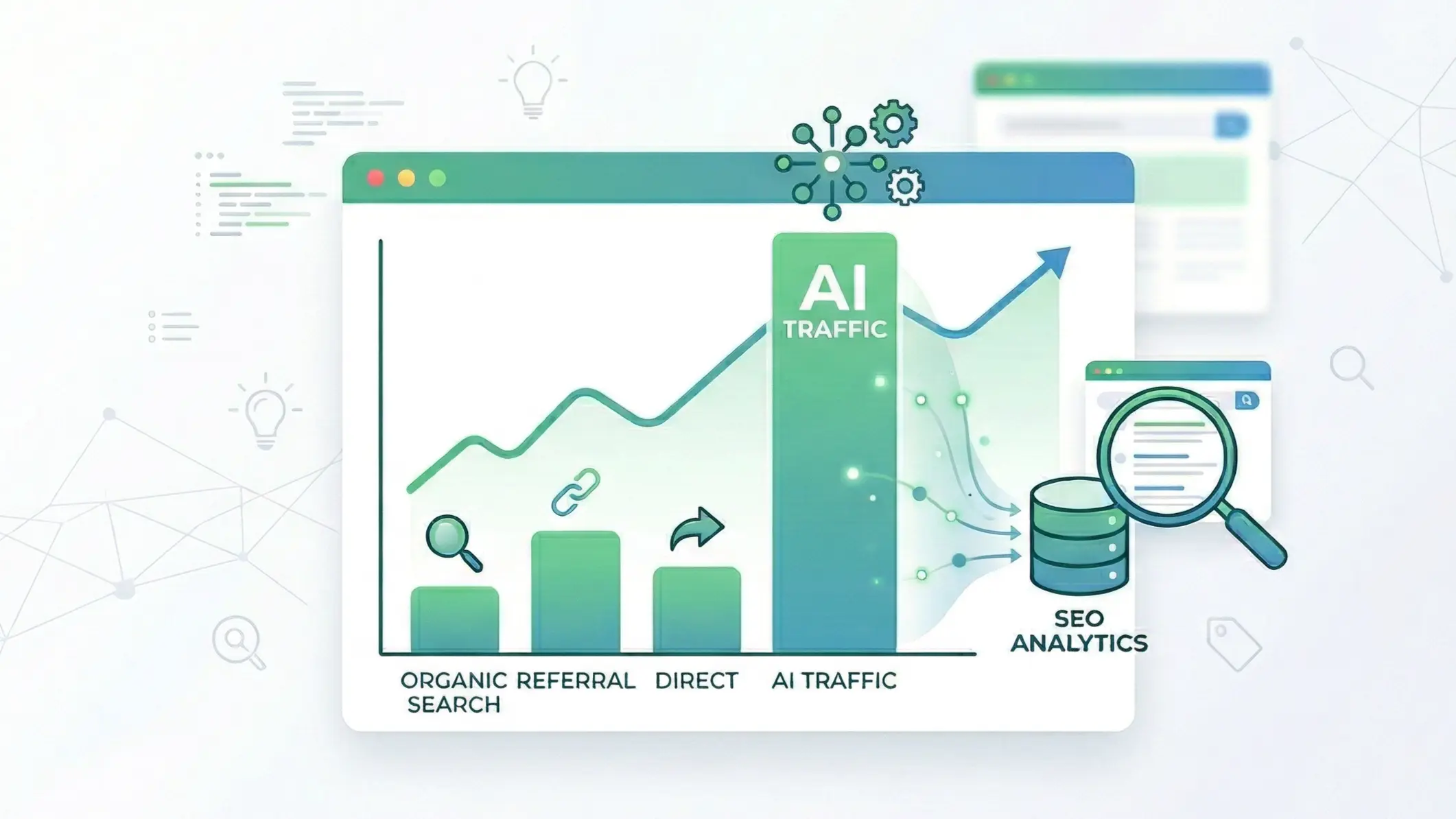
What “AI Traffic” Actually Means
Before we jump into setup, we need to clarify something.
“AI traffic” isn’t a default channel in Google Analytics.
You have to define it.
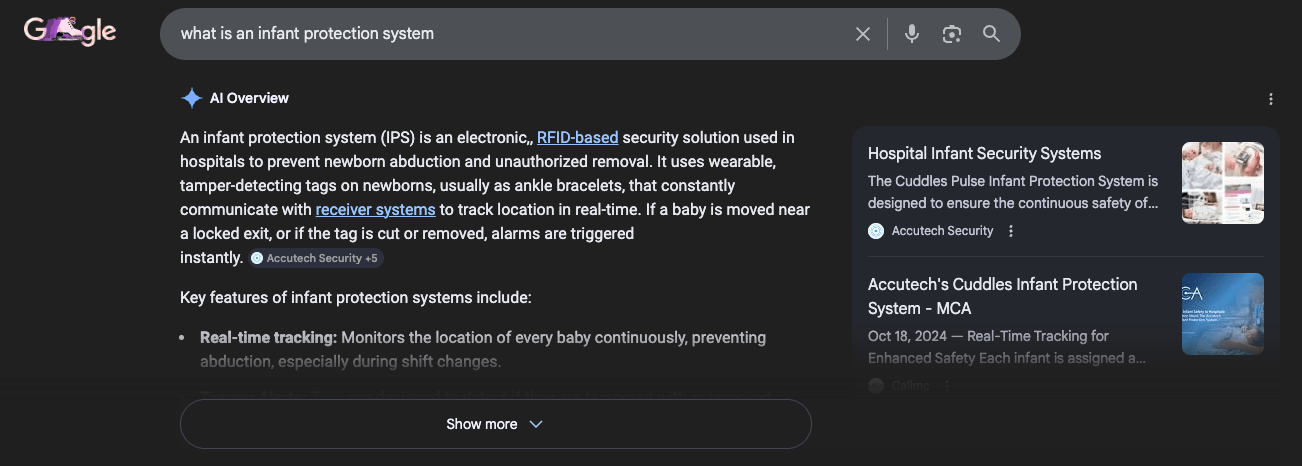
What Counts as AI Traffic?
When we say AI traffic, we’re typically referring to:
- Google AI Overviews
- Featured Snippets
- People Also Ask results
- ChatGPT referrals
- Perplexity referrals
- Other AI tools sending traffic to your site
But they do not appear in GA4 as “AI.”
They blend into other channels.
Here’s what that looks like by default:
| Source | How GA4 Classifies It | Custom Setup Required? |
| AI Overview | Organic Search | Yes |
| ChatGPT | Referral | Yes |
| Perplexity | Referral | Yes |
| Featured Snippet | Organic Search | Yes |
That’s why most teams can’t separate AI Overview traffic from regular SEO traffic.
And that’s where proper tracking comes in.
Adding the required JavaScript variables in Google Tag Manager.
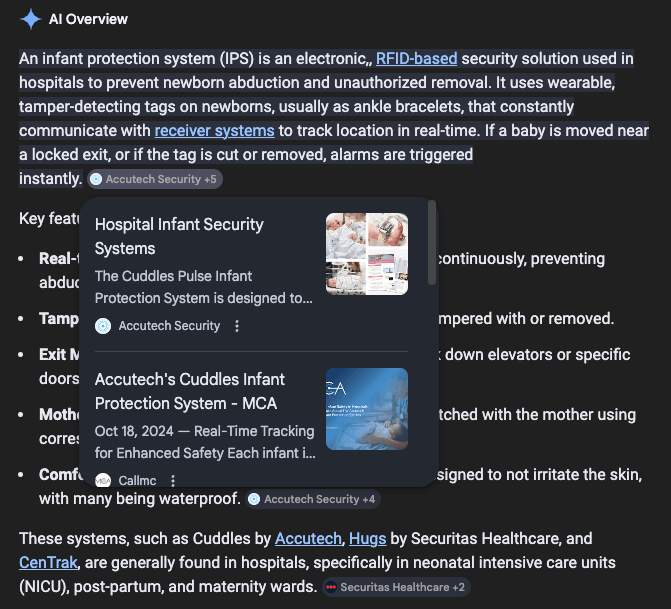
Why AI Overview Traffic Is Hard to Track
Google does not currently label AI Overview clicks separately in GA4.
They’re treated as organic search.
So unless you:
- Capture snippet signals via GTM
- Send them as event parameters
- Create custom definitions
- Build an audience around them
You’re flying blind.
Important: Not all AI Overview clicks can be tracked using this method.
Some AI Overviews include standard links that do not contain the #:~:text fragment used in this setup. When that happens, those visits will appear as regular organic search traffic in GA4 and cannot be isolated using snippet-based tracking.
The good news?
The setup is straightforward.
The bad news?
If one step is wrong — it won’t work.
Next section, we’ll walk through:
Adding the required JavaScript variables in Google Tag Manager.

Step 1: Add JavaScript Variables in Google Tag Manager
This is where most setups break.
If you don’t send the right data from Google Tag Manager (GTM) to GA4, nothing downstream will work.
We’re going to:
- Create two Custom JavaScript variables
- Attach them to your GA4 page view tag
- Send them as event parameters
Create Custom JavaScript Variables
Go to:
Google Tag Manager > Variables > User-Defined Variables > New
Choose:
Variable Type > Custom JavaScript
You’ll create two variables.
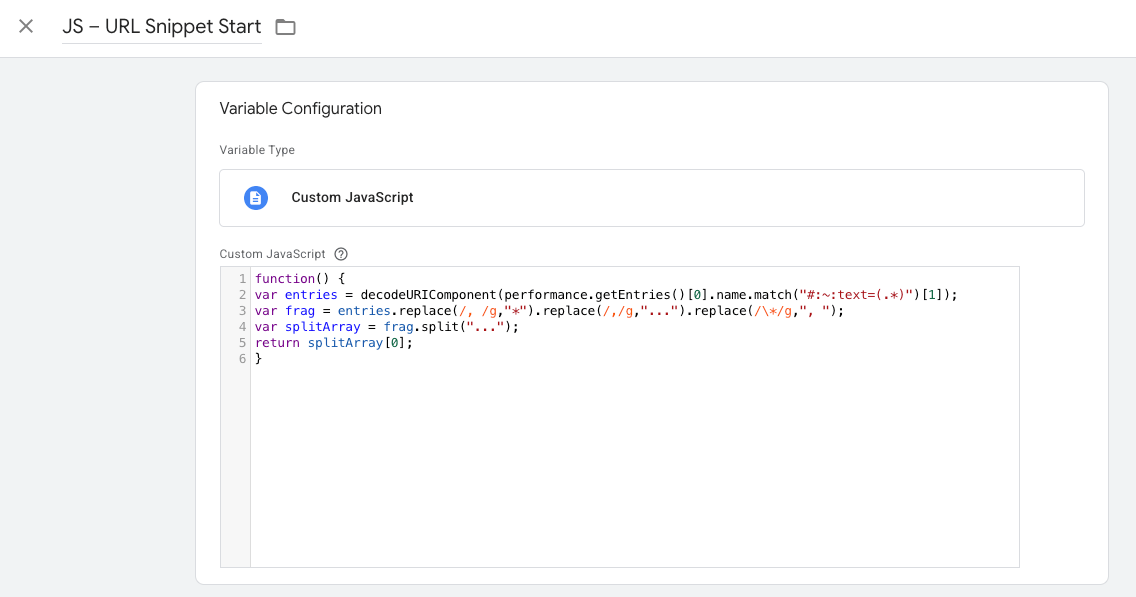
Variable #1
Name:
JSURLSnippetStart
Paste the JavaScript provided below:
function() {
var entries = decodeURIComponent(performance.getEntries()[0].name.match("#:~:text=(.*)")[1]);
var frag = entries.replace(/, /g,"*").replace(/,/g,"...").replace(/*/g,", ");
var splitArray = frag.split("...");
return splitArray[0];
}
Save.
Variable #2
Click New again.
Name:
JSURLSnippetEnd
Paste the second JavaScript snippet below:
function() {
var entries = decodeURIComponent(performance.getEntries()[0].name.match("#:~:text=(.*)")[1]);
var frag = entries.replace(/, /g,"*").replace(/,/g,"...").replace(/*/g,", ");
var splitArray = frag.split("...");
return splitArray.slice(1).join("...");
}
Save.
You should now see both variables in your User-Defined Variables list.
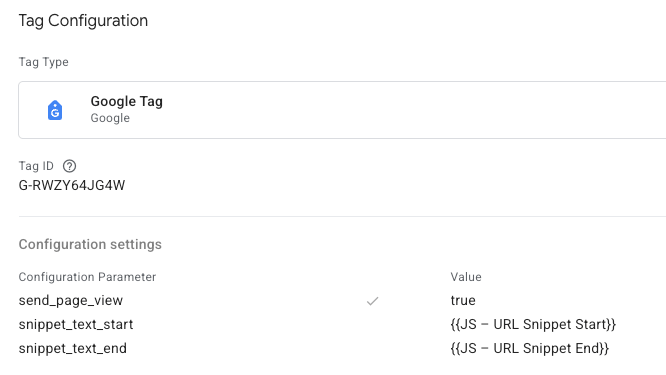
Add Variables to Your GA4 Page View Tag
Now we need to send those values to GA4.
Go to:
Tags > Your GA4 Configuration Tag (Google tag)
In most accounts, this is the tag firing your page_view event.
Scroll to:
Event Parameters
Click Add Parameter twice.
Add:
| Parameter Name | Value |
| SnippetTextStart | {{JSURLSnippetStart}} |
| SnippetTextEnd | {{JSURLSnippetEnd}} |
Important:
- Use the exact parameter names.
- Use curly braces around the variable names.
- The names must match what we’ll create later in GA4.
- Do not misspell them.
Even small differences will prevent the audience from populating.
Publish Your Container
Saving is not enough.
You must:
Click Submit > Publish
If you don’t publish, GA4 will never receive the parameters.
This is one of the most common mistakes.
Quick Checklist Before Moving On
- Both JS variables created
- Variables added as event parameters
- Parameter names match exactly
- Curly braces used
- Container published
If that’s done, GA4 is now receiving the snippet data.
Next:
We’ll create the custom definitions inside GA4 so it can actually recognize those parameters.
Step 2: Create Custom Definitions in GA4
Now that GTM is sending the parameters, we need to register them in GA4.
Go to:
GA4 > Admin > Custom definitions
Click:
Create custom dimension
You’ll create two.
Custom Dimension #1
Fill in:
- Dimension name: SnippetStart
- Scope: Event
- Event parameter: SnippetTextStart
Click Save.
Custom Dimension #2
Click Create custom dimension again.
Fill in:
- Dimension name: SnippetEnd
- Scope: Event
- Event parameter: SnippetTextEnd
Click Save.
Important:
The event parameter names must match exactly what you added in GTM:
- SnippetTextStart
- SnippetTextEnd
If they don’t match exactly (including capitalization), it will not work.
Important: Refresh GA4
After creating the custom definitions:
Refresh GA4.
The new dimensions sometimes don’t appear immediately when creating audiences.
If you don’t refresh, you may not see them available as conditions.
Quick Checklist
- Both custom dimensions created
- Scope set to Event
- Event parameter names match exactly
- GA4 refreshed
Now GA4 can recognize and use the snippet data.
Step 3: Create an AI Source Audience in GA4
We’ve:
- Sent snippet data from GTM
- Registered it as custom definitions
Now we’ll use it to isolate AI traffic.
Go to:
GA4 > Admin > Audiences
Click:
New audience > Create a custom audience
Name the Audience
Use something clear and consistent, like:
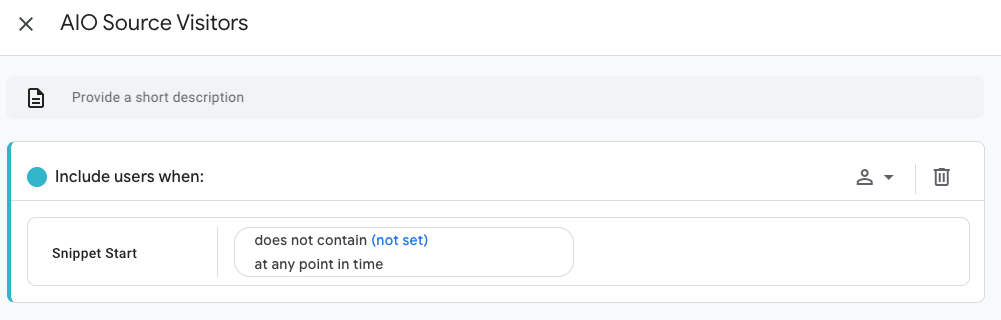
AI Source Visitors
This makes reporting easier later.
Set the Condition
Now we define who qualifies as AI traffic.
Add a condition:
- Select SnippetStart
- Choose does not contain
- Enter: not set
Why this works:
If SnippetStart is populated, the visit came from a snippet-triggered source.
If it says “not set,” it means no snippet signal was captured.
So by excluding “not set,” you isolate AI-driven visits.
Save the Audience
Click Save.
If you do not see SnippetStart available:
Refresh GA4.
What Happens Next?
The audience will start populating going forward.
Important:
- It does not backfill historical data.
- You’ll need to wait for new sessions.
- Initial visibility may take 24–72 hours depending on traffic volume.
Quick Validation Checklist
- Audience created
- Condition = SnippetStart does not contain “not set”
- Saved successfully
- Dimension visible (after refresh if needed)
At this point:
You are officially tracking AI Overview traffic separately from standard organic traffic.
Optional (But Recommended): Track ChatGPT & AI Tool Traffic in GA4
AI tools typically show up as Referral traffic in GA4.
That means:
- ChatGPT traffic blends in with random referrals
- Perplexity looks like any other website
- You can’t measure AI tool performance clearly
We fix that with a custom channel group.

Step 4: Create an AI Tools Channel Group
Go to:
GA4 > Admin > Channel groups
Click:
Create new channel group
Name the Channel Group
Use something clear:
AI Tools Added
Add a New Channel
Click:
Add new channel
Name it:
AI Tools
Set the Condition
Under conditions:
- Select Source
- Choose matches regex
Then paste the regex provided below:
^(?:chatgpt.com|chat-gpt.org|claude.ai|quillbot.com|openai.com|blackbox.ai|perplexity(?:.ai)?|copy.ai|jasper.ai|copilot.microsoft.com|gemini.google.com|(?:w+.)?mistral.ai|deepseek.com|edgepilot|edgeservices|nimble.ai|iask.ai|aitastic.app|bnngpt.com|writesonic.com|exa.ai|waldo|cohere.ai|huggingface.co|anthropic.com|chatglm.cn|baichuan-ai.com|zhipu.ai|palm-ai.google.com|gemini-api.google.com|xiaoice.com|quora.com/poe|my-ai.snapchat.com|deepl.com|you.com|yiyan.baidu.com|ai.baidu.com|anthropic-api.com|open-assistant.io|huggingchat.com|forefront.ai|character.ai|chat.suno.com|deepmind.com|phind.com|pi.ai|komo.ai|vicuna.ai|firefly.adobe.com|grok.x.com|coze.com|x.ai|bard.google.com|lighton.ai|spellbook.rossintelligence.com|notion.so/ai|wordtune.com|syntesia.io|hyperwriteai.com|sap.ai|reka.ai|app.loora.ai|uminal.org|alphacode.google.com|ai21.com|openrouter.ai|magical.team|useblackbox.io|ai-coustics.com|chinchilla.ai|d-id.com|wav.ai|openchat.so|floydhub.com|bing.com/chat|copilot.azure.com|turing.microsoft.com|cosmos.microsoft.com|orca.microsoft.com|phi.microsoft.com|megatron.microsoft.com|jarvis.microsoft.com|maia.microsoft.com|palm.google.com|deeplearning.google.com|vertexai.google.com|ai.google.com|deepmind.google.com|cloud.google.com/ai|cloud.google.com/vertex-ai|research.google.com/ai|ml.googleapis.com|tensor.google.com|t5.google.com)$
Important:
Use the full regex string exactly as provided.
Do not modify it unless you know regex formatting.
Reorder the Channel Group
After saving:
Drag the new AI Tools channel above Referral.
If you don’t reorder it:
GA4 will still classify traffic as Referral.
Order matters in channel grouping logic.
Click Apply
Save.
Apply changes.
Done.
Quick Checklist
- New channel group created
- AI Tools channel added
- Source = matches regex
- Correct regex pasted
- Channel dragged above Referral
- Changes applied
Now:
- AI Overviews are tracked via audience
- ChatGPT & AI tools are tracked via channel grouping
You’ve separated both major AI traffic sources.
How to Validate That AI Traffic Tracking Is Working
There are two things to verify:
- AI Overview audience is populating
- AI Tools channel is classifying correctly

Validate AI Overview Tracking
Go to:
GA4 > Reports > User > Audiences
Find:
AI Source Visitors
You should start seeing users populate over time.
Important:
- Data is not retroactive
- It only tracks new sessions
- Initial visibility may take 24–72 hours depending on traffic volume
Validate AI Tools Channel Group
Go to:
GA4 > Reports > Acquisition > Traffic acquisition
Change the primary dimension to:
Session default channel group
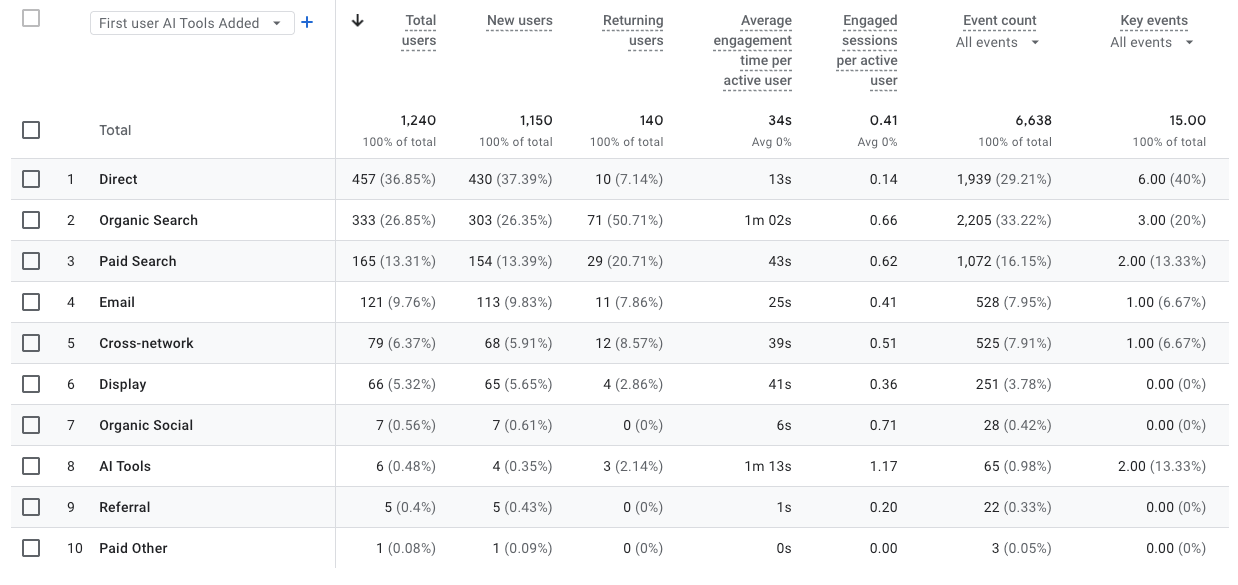
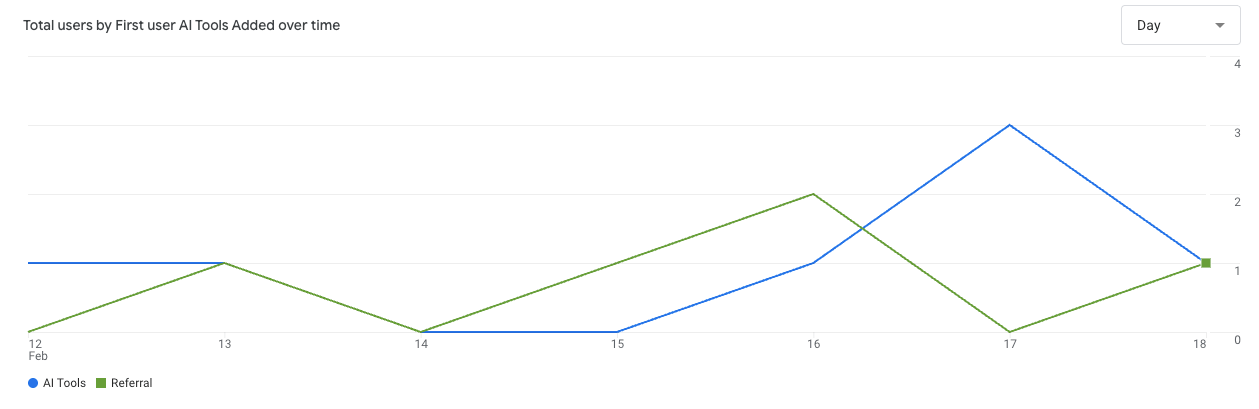
Select your new channel group (AI Tools Added).
You should now see:
A separate AI Tools channel.
Click into it.
Then add Session source/medium as a secondary dimension.
You should see sources like:
- chat.openai.com
- perplexity.ai
- gemini.google.com
If those are still showing under Referral:
Your channel order may be incorrect.
Common Mistakes That Break AI Tracking
- GTM Container Wasn’t Published
Saving is not enough. You must submit and publish. - Parameter Names Don’t Match
SnippetTextStart must match exactly in:- GTM
- GA4 custom definitions
Capitalization matters.
- Curly Braces Were Omitted
The values in GTM must use:
{{JSURLSnippetStart}}
Without the curly braces, the variable won’t resolve.
- Custom Definitions Were Not Created
If GA4 doesn’t register the parameters, you can’t build audiences from them. - Channel Wasn’t Dragged Above Referral
Channel groups follow rule order.
If AI Tools sits below Referral, it won’t trigger.
How to Use AI Traffic Data (And Prove ROI)
Once AI traffic is isolated, the real opportunity begins.
Most brands stop at “we’re getting AI visits.”
That’s not enough.
You want to answer:
- Is AI traffic engaged?
- Does it convert?
- Is it influencing pipeline?
- Is it different from traditional SEO traffic?
Compare AI vs Organic Performance
Go to:
Reports > Acquisition > Traffic acquisition
Compare:
- AI Source Visitors audience
- Organic Search
Look at:
- Engagement rate
- Average engagement time
- Conversion rate
Analyze Conversions Specifically from AI Traffic
Go to:
Explore > Free Form
Add:
- Dimension: Audience name
- Metrics: Conversions, Event count, Revenue
Filter for:
AI Source Visitors
Look at Assisted Conversions
Use Attribution reports to see:
- Assisted conversions
- Path exploration
Build Remarketing Audiences
Now that AI traffic is segmented:
You can create remarketing audiences such as:
- AI visitors who didn’t convert
- AI visitors who viewed pricing
- AI visitors who engaged 60+ seconds
Quick Summary
| Metric | Why It Matters |
| Engagement rate | Signals content quality |
| Conversion rate | Revenue impact |
| Assisted conversions | Mid-funnel influence |
| New users | Discovery value |
| Revenue per session | ROI clarity |
FAQ: How to Track AI Traffic in GA4
Does AI Overview traffic show separately in GA4 by default?
No.
Google AI Overview clicks are classified as Organic Search by default.
Without:
- GTM variables
- Custom definitions
- An audience
You cannot isolate AI Overview traffic.
Does ChatGPT traffic show as AI in Google Analytics?
No.
ChatGPT typically appears as Referral traffic.
That means it blends in with every other referring site unless you:
- Create a custom channel group
- Use source matches regex
- Reorder the channel above Referral
How long does it take for AI traffic data to appear?
Tracking is not retroactive.
Once implemented:
- Data usually appears within 24–72 hours
- It depends on your traffic volume
If you see zero after several days, double-check:
- GTM was published
- Parameters match exactly
- Custom definitions were created
- Channel group was reordered
Can this setup break my existing tracking?
No.
You are:
- Adding event parameters
- Creating custom dimensions
- Creating a new channel group
You are not replacing core GA4 tracking.
Still, always test in preview mode in GTM before publishing.
Do I need Google Tag Manager to track AI Overview traffic?
Yes.
The snippet-based tracking method requires:
- Custom JavaScript variables
- Event parameter mapping
This cannot be done directly inside GA4 alone.
Is tracking AI traffic worth it right now?
If AI search is influencing even 5–10% of your organic visibility, yes.
Without isolating it:
- You can’t measure performance
- You can’t prove ROI
- You can’t optimize strategically
AI traffic is growing.
The brands that measure it early will understand it better.
Need Help Setting This Up?
If this feels technical… that’s because it is.
AI traffic tracking requires:
- Custom GTM variables
- Proper GA4 configuration
- Correct parameter mapping
- Ongoing validation
One small mistake — and your data won’t be reliable.
If you’d rather focus on growing your business instead of configuring tracking frameworks, our team can handle the full setup for you.
We’ll implement it correctly, validate it, and build reporting that clearly shows how AI traffic impacts your pipeline.
Explore our Reporting & Analytics Services

DIGITAL MARKETING SOLUTIONS
Relax.
You've got a digital marketing partner.
Digital Division is a marketing agency with solutions that can help you generate leads and transform your business.